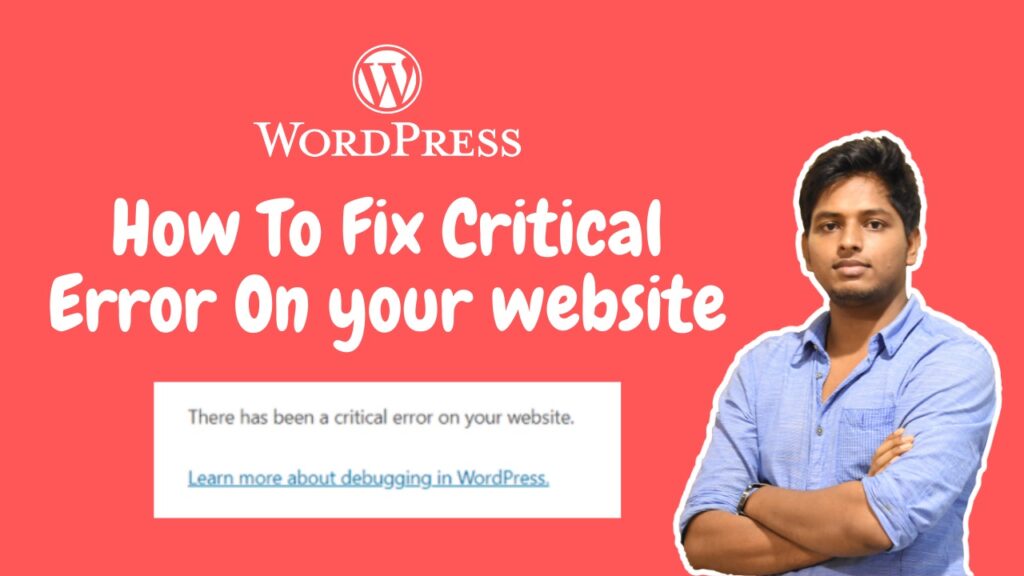
How to Fix ” There has been a critical error on your website” | WordPress Website Critical Error
How to Fix “There Has Been a Critical Error on Your Website” in WordPress
Seeing the message “There has been a critical error on your website” can be scary, but it’s one of the most common WordPress issues — and it’s usually easy to fix. This error appears when WordPress hits a fatal PHP problem that stops the site from loading. Here’s a simple guide to understand the issue and fix it step-by-step.
What Causes the Critical Error?
A few common reasons trigger this message:
- A faulty or newly updated plugin
- A broken or incompatible theme
- PHP version conflicts
- Corrupted WordPress core files
- Low PHP memory limit
- Errors inside custom code or functions.php
Knowing the cause makes fixing it much faster.
How to Fix the Error (Step-by-Step)
1. Enable Debug Mode
Turn on debug mode to view the exact error.
- Open your file manager or FTP
- Edit
wp-config.php - Add this line before the “That’s all, stop editing” comment:
define( 'WP_DEBUG', true );
define( 'WP_DEBUG_LOG', true );
Now reload your site and check the file /wp-content/debug.log for details.
2. Disable All Plugins
Most critical errors come from plugins.
- Go to File Manager → wp-content
- Rename the plugins folder to
plugins-old - Check your site again
If it’s fixed, rename the folder back and disable plugins one-by-one to find the culprit.
3. Switch to a Default Theme
If your theme is broken:
- Go to wp-content/themes/
- Rename your active theme folder
- WordPress will automatically switch to a default theme like Twenty Twenty-Four
If the site loads, your theme caused the error.
4. Increase PHP Memory Limit
Low memory can also trigger fatal errors.
Add this to wp-config.php:
define( 'WP_MEMORY_LIMIT', '256M' );
Reload your website.
5. Update PHP & WordPress
Outdated versions often conflict.
- Update PHP to at least 8.0+
- Update WordPress core, themes, and plugins
Always keep backups before updating.
6. Reinstall WordPress Core
If some core files are corrupted:
- Download fresh WordPress from wordpress.org
- Replace all files except wp-content and wp-config.php
This fixes missing or broken core files.
7. Contact Hosting Support
If none of the above works, your host can:
- View server error logs
- Fix PHP conflicts
- Repair database issues
Most hosting providers solve this quickly.
Final Thoughts
The WordPress critical error looks serious, but it’s usually a simple plugin, theme, or PHP issue. By following the steps above, you can troubleshoot and restore your site within minutes. Always keep regular backups and update your site to avoid future errors.